
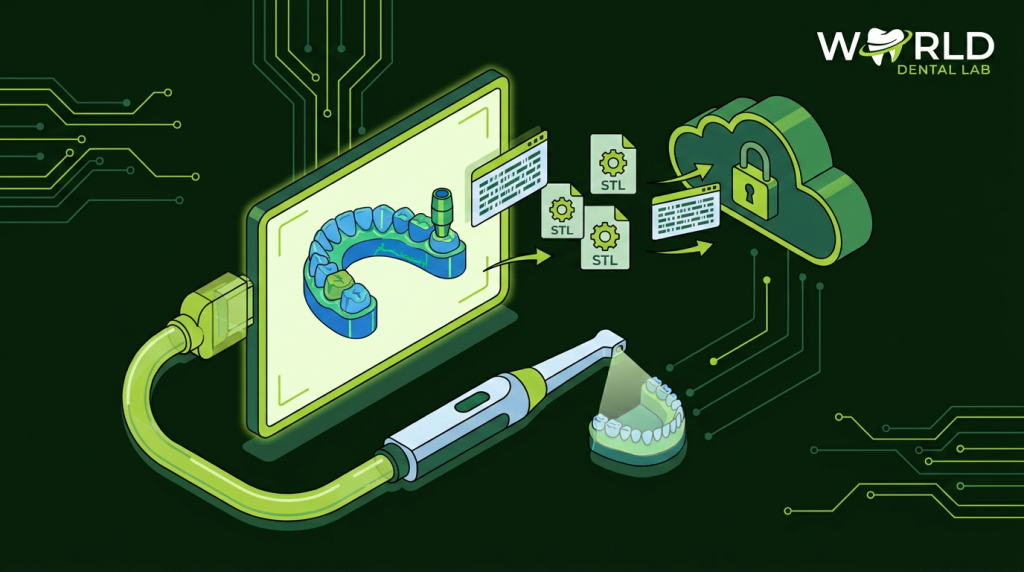
Digital impressions have transformed dental lab workflows — but they also introduce new failure points. For a full comparison of digital vs physical impression methods, see Digital Impressions vs Physical Impressions: A Dental Lab Perspective. Labs regularly receive STL files that are incomplete, incorrectly oriented, or exported in incompatible formats. Every error adds delay. This guide covers exactly how to prepare, export, and send STL files to ensure your cases move straight into production.
What Files Does a Dental Lab Need?
A complete digital case submission includes multiple scan files — not just the preparation scan. Here is what’s required for a standard crown or bridge case:
- Prepared arch scan: The arch containing the prepared tooth/teeth — with clear, defined margins
- Opposing arch scan: The antagonist arch — used to design occlusal contacts
- Bite registration scan: Records the occlusal relationship between the two arches — taken in maximum intercuspation (MIP)
- Pre-preparation scan (recommended): A scan of the tooth before preparation — used for reference on emergence profile and occlusal anatomy
For implant cases, also include:
- Scan body scan: Taken with the scan body in place — identifies implant position and angulation
- Implant system information: Brand, model, platform diameter (e.g., “Nobel Active RP 4.3mm”)
Accepted STL File Formats
| Format | Compatibility | Notes |
|---|---|---|
| STL (binary or ASCII) | Universal | Default export format — accepted everywhere |
| OBJ | Widely accepted | Supports color data for shade workflows |
| PLY | Some labs | Less common; check with your lab first |
| 3Shape DCM | 3Shape-equipped labs | Convert to STL if your lab uses different software |
| Dentsply Sirona SSI | CEREC labs | Export as STL for universal compatibility |
| iTero native | iTero-equipped labs | Always export STL as backup |
Best practice: Always export to STL format regardless of your scanner. STL is universally accepted and ensures your lab can process the file even if they don’t use the same scanner ecosystem.
Common STL Export Errors (and How to Avoid Them)
1. Missing Margin Detail
The most common reason for case delays. The margin area must be fully captured — gingival retraction cord or air/water retraction technique should ensure 0.5 mm of subgingival sulcus is visible in the scan. If the margin is obscured by blood or gingival tissue, the lab cannot design an accurate margin and will request a rescan.
2. Incomplete Bite Registration
A bite registration with gaps, poor contact points, or incorrect occlusal relationship results in incorrect occlusal contact design. Always verify the bite scan visually on the scanner screen before dismissing the patient.
3. Incorrect Scan Body Seating
For implant cases, the scan body must be fully seated and immobile during scanning. Any movement during capture introduces positional error that propagates through the entire restoration design. Verify seating radiographically before scanning.
4. Files Named Generically
Sending files named “scan1.stl”, “scan2.stl” causes confusion and delays in the lab. Use a consistent naming convention:
- Example:
PatientID_Date_PreparationArch.stl - Example:
Smith_J_20260617_UpperArch.stl
5. Compressed or Converted Files
Avoid re-saving STL files in mesh editing software (Meshmixer, etc.) unless you know what you’re doing. Re-saving can corrupt mesh topology, reduce triangle count, or reverse surface normals — all of which cause design software errors.
Recommended Pre-Send Checklist
- ☐ Prepared arch: margins clearly visible, no voids over preparation
- ☐ Opposing arch: complete occlusal surface captured
- ☐ Bite registration: both arches in contact, no distortion
- ☐ Implant scan: scan body scan included with implant system information
- ☐ Files exported as STL (binary)
- ☐ Files named with patient ID, date, and arch designation
- ☐ Shade, material, and special instructions included in case form
How to Send Files to World Dental Lab
World Dental Lab accepts digital cases via email attachment (for small file sets) or our partner file transfer portal for larger cases. For full details on accepted formats, scan requirements, and submission steps, see our digital workflow guide.
We accept files from all major intraoral scanners including 3Shape TRIOS, Dentsply Sirona CEREC Primescan, iTero, Planmeca PlanScan, Medit i700, and others.
Submit Your First Digital Case
World Dental Lab accepts digital cases from labs and clinics in 32 countries. Same-day production start on complete submissions.
